

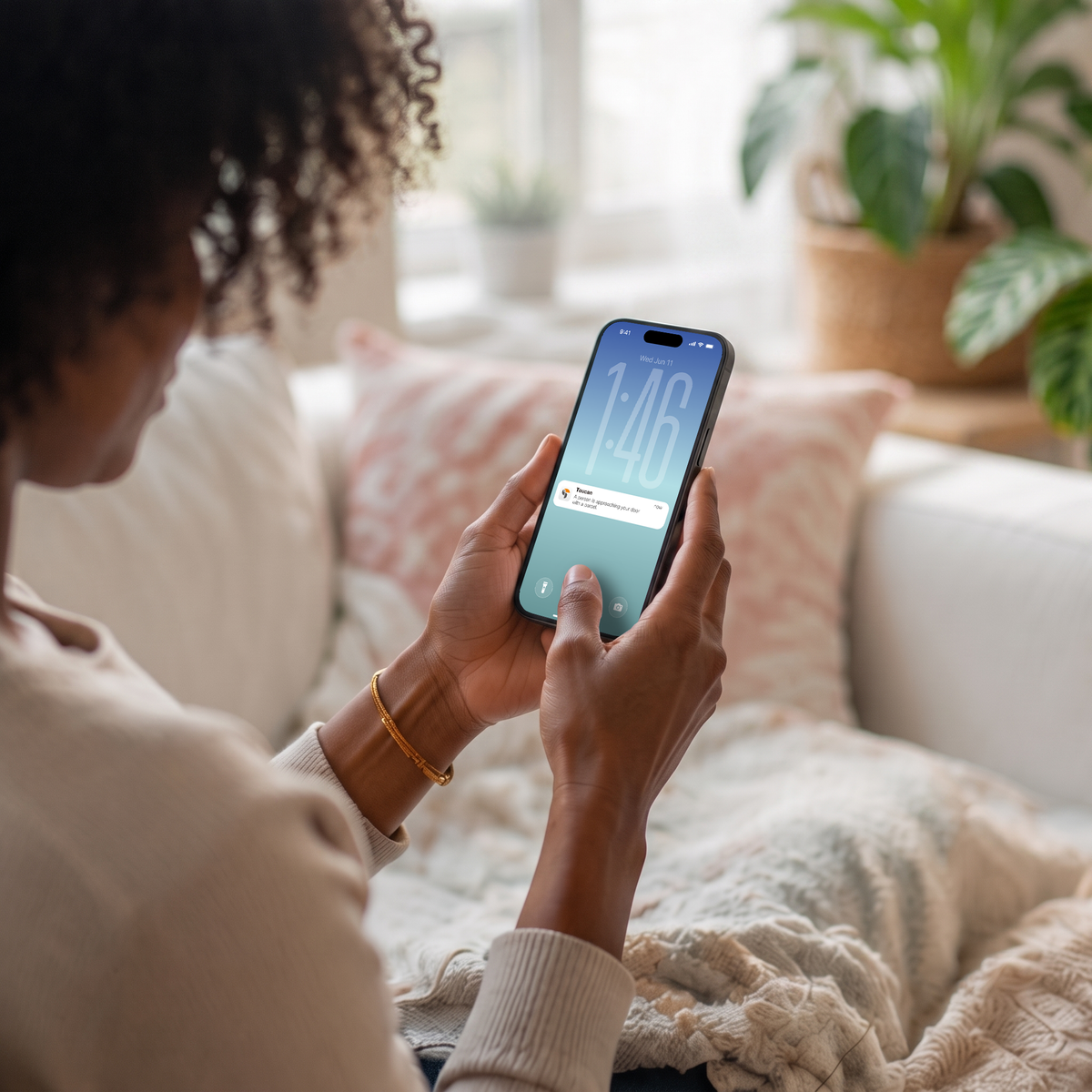
Small app settings can make a wireless camera or video doorbell easier to live with. In the Toucan Smart Home app, Motion Zones can narrow the area that triggers motion events, Auto Greetings can provide a pre-recorded response, and Snooze can pause motion notifications and event recording for a set period.
The current Toucan Shield Plans comparison lists Motion Detection Zones, pre-recorded messages, Snooze Button and Snooze Schedule among Basic features available without a required monthly fee. Custom and holiday greeting messages are optional AI+ features. Check the options shown for your device and plan before changing a setting.
Yes, being able to check a live feed or receive an alert when movement is detected is important. But the Toucan Smart Home App includes plenty of ways to tailor your security system around your actual home and daily routine too.
From cutting down unnecessary notifications to answering visitors when you can’t get to the door, here are three Toucan Smart Home App features worth getting to know.
MOTION ZONES
Motion alerts are useful. An alert every time a car drives along the road outside your house? Not so much. That’s where Motion Zones come in.
Within the Toucan Smart Home App, you can customise which parts of your camera’s view you want it to monitor for movement and which areas you want it to ignore.
For homes facing busy roads: If traffic falls within your camera’s field of view, excluding the road can help prevent unnecessary triggers.
For front gardens beside pavements: Position your active detection area around your own path, doorway or garden rather than passing pedestrians.
For driveways: Focus detection on the area immediately surrounding your car or entrance to the property.
For gardens: If a moving tree, neighbouring garden or other busy area regularly triggers your camera, adjusting the monitored area can make your notifications much more useful.

Here’s how to set your own motion zones in five simple steps:
1. Open the Toucan Smart Home App and select your device.
2. Tap the settings cog beneath the device’s preview.
3. Select Motion Zones.
4. Tap the areas where you do not want your device to detect motion. You can also move the grid lines using the white tabs to adjust the zones to suit your space. The areas you turn off will be highlighted in orange. Remember: orange means OFF, so motion in these areas will not trigger an alert.
5. Save your settings.

AUTO GREETINGS
There are plenty of times when somebody arrives at the door and you either can’t, or don’t want to, speak to them live.
You might be in a meeting. You could be putting the kids to bed. You may be away from home. Or you might simply prefer not to use your own voice when responding to an unknown visitor.
Auto Greetings let your Toucan device do the talking instead.
Using the Toucan Smart Home App, you can set automatic responses on compatible devices.
Depending on how you want to use the feature, these greetings can be scheduled, left permanently active or selected manually while viewing your camera live. That creates quite a few possibilities…
For deliveries: When viewing the live feed, you can play a pre-recorded message to tell a courier where you would like a parcel to be left if you aren’t answering the door yourself.
For unwanted callers: If you would rather not engage directly with somebody at the door, a recorded response gives you another way to let them know the property is being monitored or ask them to leave.
When you’re busy at home: Being at home doesn’t necessarily mean being available. If the doorbell goes while you’re on a work call, cooking dinner or dealing with bedtime, you can respond without having to drop everything and get to the door.
When you want to keep your voice private: Auto Greetings can also be useful if you simply don’t want an unknown visitor to hear your real voice.

SNOOZE
There are times when you absolutely want your security camera to tell you that somebody is moving around outside. There are also times when you’re the person moving around outside!
Cutting the grass. Washing the car. Taking shopping backwards and forwards from the boot. Letting the kids play in the garden. Having friends over for a barbecue.
Without a way to temporarily pause things, your phone could end up receiving alert after alert about activity you already know is happening.
The Snooze feature in the Toucan Smart Home App lets you temporarily stop motion notifications and video event recordings when you don’t need them.
Remember: Snooze pauses motion detection and the recording of motion events, as well as notifications. If you only want to silence alerts while keeping motion recordings, use Do Not Disturb.
You can pause a device for a set period or create a Snooze Schedule if there’s a regular time when you don’t want motion activity recorded. That second option can be particularly useful for predictable routines.
Perhaps somebody regularly leaves for an early shift at the same time each morning, the children play in the garden every afternoon or you have somebody visiting the property on a regular schedule.
Rather than repeatedly changing your settings, you can build that routine into the app.
And for households using multiple Toucan devices, Snooze All makes things even simpler by allowing you to control multiple devices at once.
So, if you’re having a garden party, doing a big clean-up around the outside of the house or simply know the whole family will be coming and going for the next few hours, you don’t have to work through every camera individually. One less thing on your list!
Small settings can make a big difference
Smart home security shouldn’t mean spending your day staring at a camera feed or responding to endless notifications.
The most useful security system is one that fits quietly around everyday life and alerts you when it matters.
That’s why taking a few minutes to explore the Toucan Smart Home App can be worthwhile.
If you already have a Toucan device, open the Toucan Smart Home App and take a look at your current settings. You might find there’s more you can customise than you realised!
Click here to discover more about the Toucan Smart Home App.
Share:
Introducing: The Toucan S5 Solar Wireless Security Camera
The clocks are going back: 5 ways to secure your home as the nights get darker